
Integrate Excel with a Team/Individual Objective
Step 1: Add an Objective and Key Result(s)
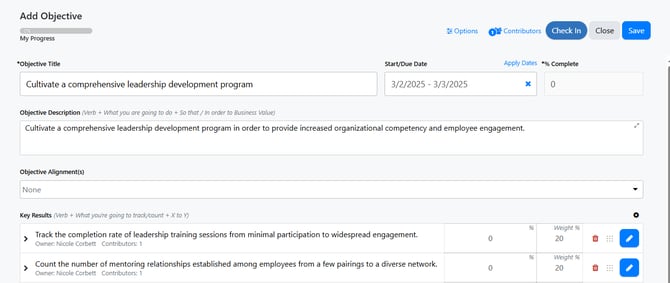
Edit a Key Result by clicking the pencil icon
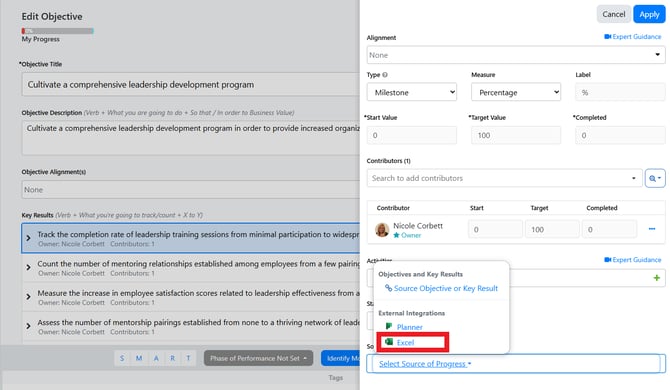
Select Source of Progress
Select Excel

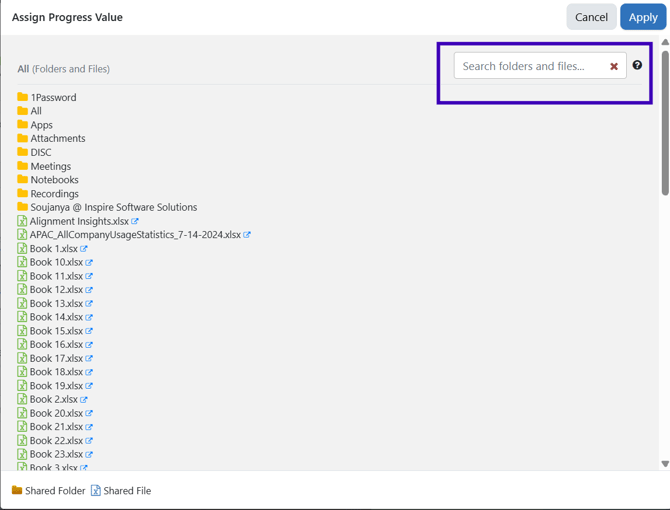
Your files will appear for you to choose the excel file you wish to use from your Onedrive.
You can use the 'Search' field to search through the files/folders you have access to the current level.
Note: The Search only applies to the level of files/folders that displays on the screen and will not search through folders for a specific file. In order to access a file within a specific folder, please select the folder and then use the 'Search' field to locate the specific file.
Choose the appropriate Excel file.
Note: The Cell you choose must have a numeric value
Fill in the appropriate fields:
- Worksheet
- Cell
- Click the refresh button to populate the field
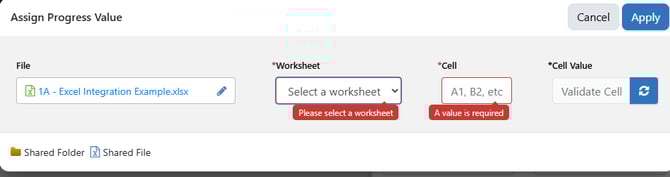
In this example:
- My file name is 1A- Excel Integration Example
- The Worksheet I chose was Sheet 1
- Cell I chose is A1
- A1 has a value of 50
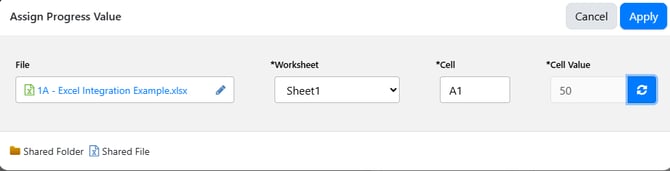
The Value 50 will be represented in the Key Result once you Apply and Save
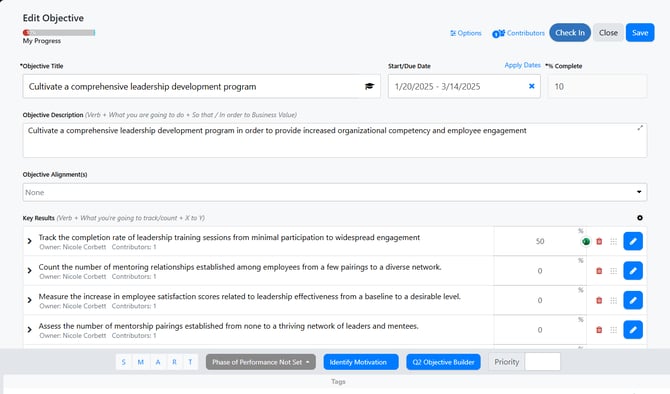
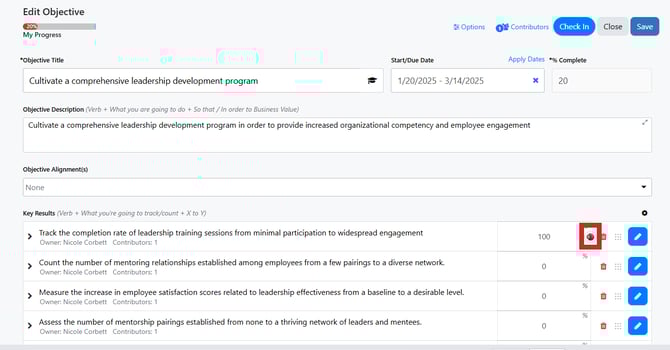
If the value is updated in Excel and you would like that to be reflected in Inspire:
Option 1: Click on the Excel icon and the progress will update
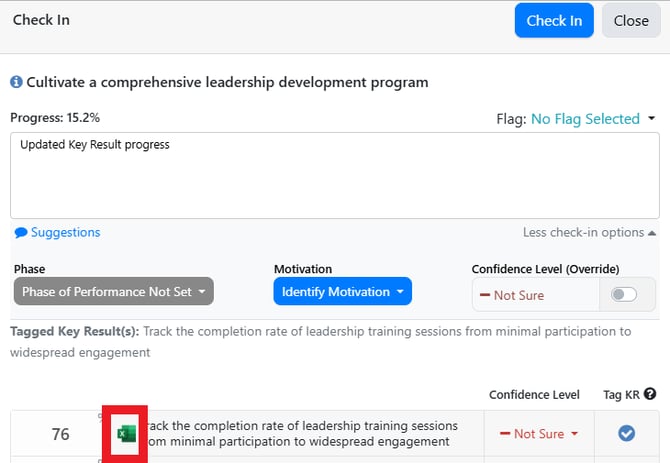
Option 2: Click Check In and click on the Excel icon. Progress will update
Note: Excel integration needs to be enabled for your organization and requires O365 Authentication when logging in to Inspire. Please contact your Inspire Administrator if you do not see the Excel Integration option.
If you have any questions, please contact support@inspiresoftware.com.