
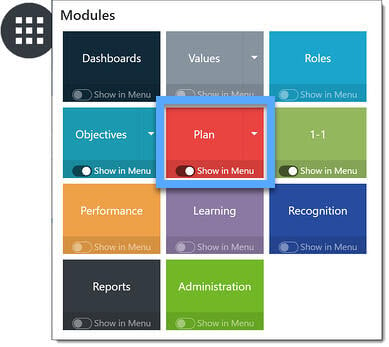
Navigation - From the Modules menu, select Plan (which opens on the Weekly Plan tab), then click the Daily Calendar tab.
NOTE: If Inspire is linked with your company’s Office 365 suite, creating an event in the Daily Calendar will also sync to your Microsoft Outlook account.

Click the Daily Calendar tab to access your Daily Calendar.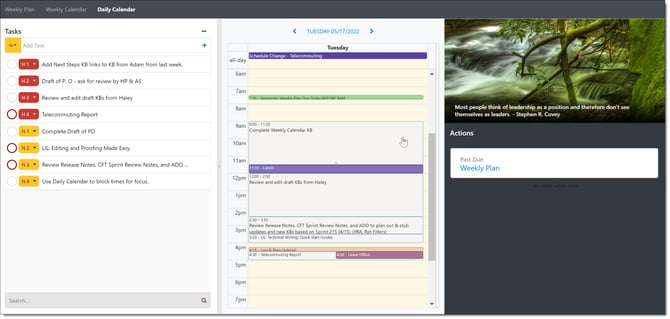
Tasks
Tasks are listed on the left, in the Task List. These are the specific tasks due for today, which is the default date for the Daily Calendar. Tasks are listed in priority order, from high to low for today. 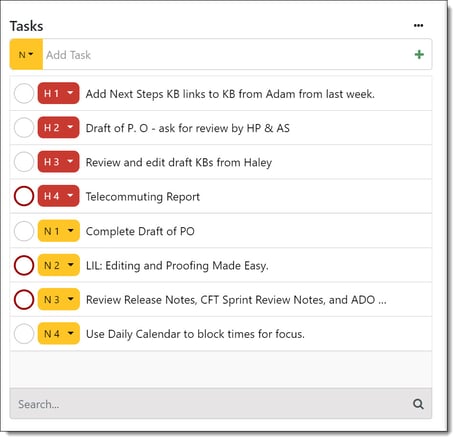
Task Status Indicators
Tasks due today, not yet due, or without an assigned due date have a white circle with a gray border:
 Overdue tasks are indicated by a white circle with a red outline:
 Click the circle to mark a task done on the list; completed tasks are indicated by a green circle with a black check mark.

NOTE: See Using Settings to Control Plan View for details about settings, including prior week tasks carrying over to the following week.
Reorder Tasks
Hover over the right side of a task. A crossbar with four arrowheads appears; click and drag the task to reorder it in your task list.
Add a New Task
If you need to enter a new task, type the task in the Add Task field, assign a priority, then click the green + button.
Working with the Tasks in the List:
You can use click on the Priority drop down on any task on the list to change the task priority, delete the task from the list, move the task to today, or move the task to tomorrow.

Change a task priority
Click the priority drop down on the task to assign a new priority (High, Normal or Low).
Delete a Task
Click the priority drop down on the task, then select the trashcan icon.
Move the Task to Today
Click the priority drop down on the task, then select the DOWN arrow.
Move the Task to Tomorrow
Click the priority drop down on the task, then select the RIGHT arrow.
Edit a task
Click on the task to open the Edit Task page.
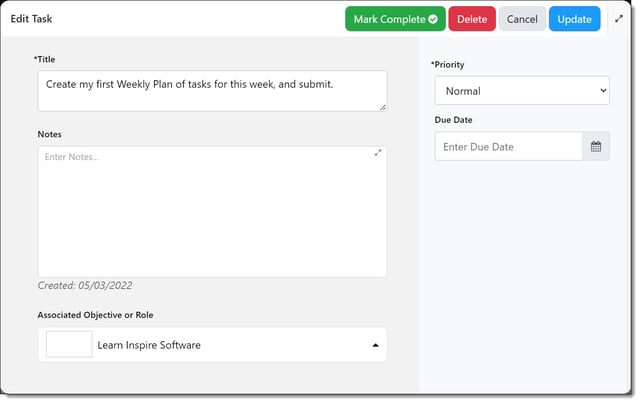 Enter the following information about the task in the Edit Task page:
Calendar
The calendar displays the current day. To view a different day, use the < and > directional arrows or click the date link located above the calendar to select the desired day.
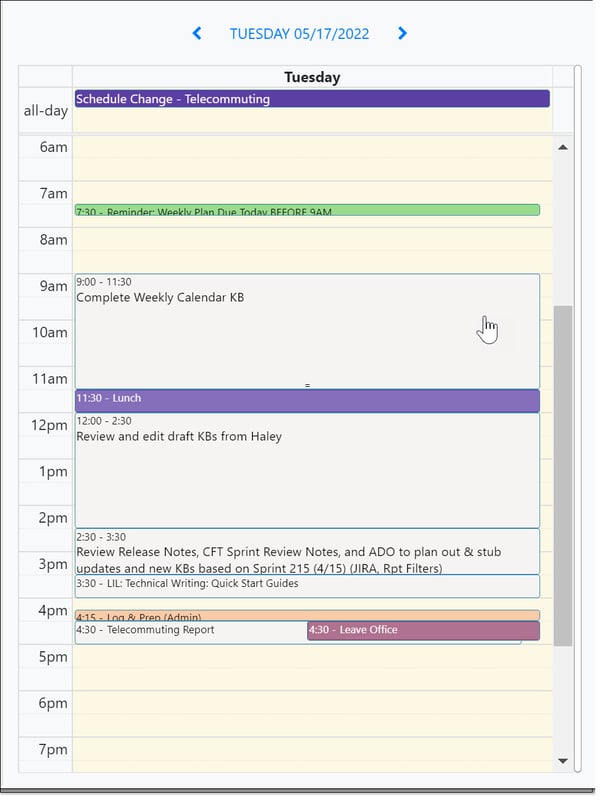 Add a Task from the Task List to Create an Event on Your Daily Calendar
Drag a task from your task list to your daily calendar; hover over the right side of a task to see the crossbar with four arrow heads.
Click and drag the task to your Daily Calendar; position it in the time slot where you want to drop it on the calendar. The time slot will become shaded behind the task when the task is over a time slot.
Drop the task on to your calendar to create a calendar event and block out time.
Embedding Web Content in Your Daily Calendar
You can embed a web page — a dashboard, report, or reference page — so it appears alongside your calendar and tasks while you plan. To set it up:
- Open your Daily Calendar. From the Modules menu, select Plan, then click the Daily Calendar tab.
- Select the gear icon (
 ) in the upper-right corner to open Daily Calendar Settings.
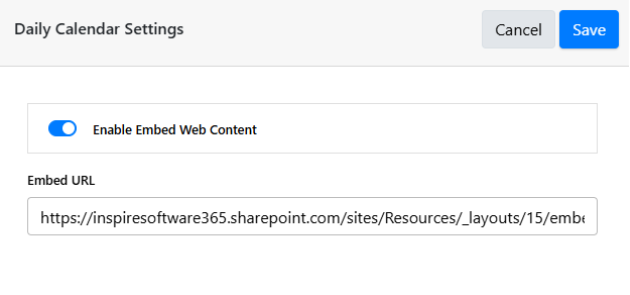
- Toggle Enable Embed Web Content on.
- Paste the address of your content into the Embed URL field, then click Save.
- Save. Click Save. Your embedded content now appears on the Daily Calendar, ready to reference while you plan.
NOTE: The Embed URL must come from a source that provides an embeddable link. If a page does not offer an embed option, it cannot be displayed this way.
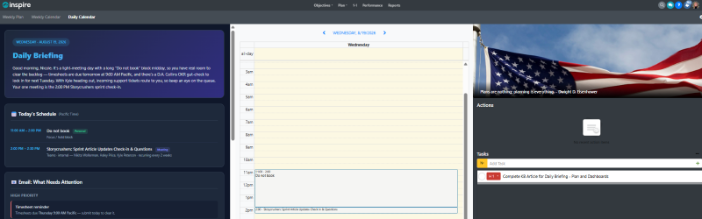
Once set up, your embedded content appears alongside your calendar and tasks, so the information you need for planning is right where you work:
If you have any questions, please reach out to support@inspiresofware.com