
What the Inspire Agent is
The Inspire Agent is an in-app chatbot that lets your users ask questions about their Inspire data in plain language and get answers without navigating through menus and reports. You can access the agent in multiple places: as a homepage widget, in a side panel beside the page a user is on, and in a full-screen view.
Behind the scenes, the Agent uses the Model Context Protocol (MCP) to understand the context of your Inspire data so it can answer questions accurately. MCP is the secure connection layer that gives the Agent permission-aware, read access to the right information for each user.
Key point: The Agent always respects each user’s existing Inspire permissions. It does not expose data a user could not already access on their own.
Enabling the Inspire Agent
The Agent is turned on at the organization level by an administrator.
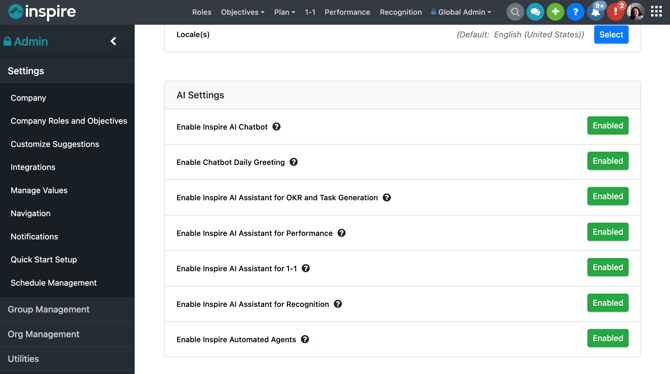
- Go to Administration and open Settings > Company
- Locate the AI Settings section.
- Toggle Enable the Inspire AI Chatbot Agent on for your organization. We also recommend enabling the Chatbot Daily Greeting.
-
Onboarding Mode: enable Onboarding Mode to give new users a guided introduction through the Agent Chat. Turn it off once your users are established, or leave it on for new hires.
-
Review any available configuration options (see below), then save.
Depending on your configuration, you may see options to adjust how the Agent behaves, such as which modules it can draw from and the scope of data it can access. Set these to match your organization’s needs before rolling the Agent out to users.
Managing the AI Chat Prompts
On the Manage AI Chat Prompts screen, sort any column and use search to quickly find a prompt. Set a priority on a daily prompt to control the order in which prompts display to users.
AI prompts in Global Admin have a Published or Draft state. Only Published prompts appear to users, so you can prepare prompts before releasing them.
Note: Prompt categories (including Strategy, Onboarding, and more) are shown based on the modules your organization uses.
Homepage widget setup
Once the Agent is enabled, it can appear on users’ homepages as a widget.
- You can setup the AI Agent Chat as a default for users who have not modified their home page settings by going to Admin, Settings, Navigation and enabling the“AI Agent Chat”at the bottom of the page
- The Agent widget becomes available in the homepage widget list.
- Users can add or remove the Agent widget from their own homepage like any other widget.
Side panel & Full Screen AI Agent Chat Access
The Agent is also available in a side panel or full screen so users can ask questions without leaving the page they are working on.
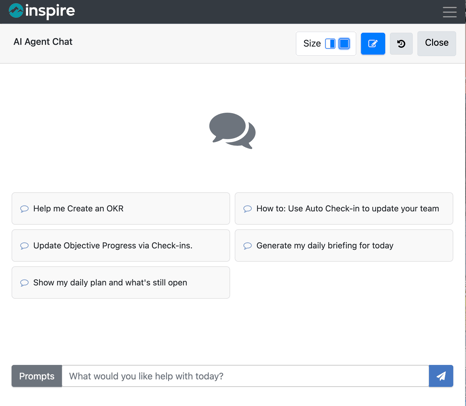
- Users open the AI Agent Chat by clicking the chat icon in the top right navigation bar next to the global search icon while viewing a module.

- Adjust the size from Side Panel to Full Screen by clicking the Size buttons in the top right of the AI Agent Chat screen.
-
- The side panel keeps the user’s current context, which is useful for questions tied to the page they are on.
AI Usage Limits
Weekly per-user cap: set a weekly cap on the AI credits each user can consume. When a user reaches the cap, AI features pause for that user until it resets at the start of the next week.
Company credit limit: set an organization-wide credit limit in Global Admin. When the company reaches its limit, AI features pause until credits reset.
Per-conversation: limits are also enforced within a conversation, so an individual chat cannot exceed the available credits.
MCP integration and data governance
The Inspire Agent connects to your Inspire data through the Model Context Protocol (MCP). This is what allows the Agent to give answers that reflect your organization’s actual objectives, check-ins, and strategy rather than generic responses.
What MCP enables
- Contextual awareness of Inspire data, so answers reflect the user’s real objectives, check-ins, recognition, and strategy.
- Permission-aware responses, so every answer is scoped to what the individual user is allowed to see.
-
Read scope: objectives and contributors, corporate objectives and strategy, performance-cycle data, competencies and value definitions, check-in history, recognition, and engagement / feature-usage data — always limited to what the user can already see.
- Write scope: create or update objectives (following your organization’s default visibility, including Private), corporate strategy and key results, performance comments, and global AI prompts — all within the user’s permissions.
How your data is protected
- Permission-scoped: the Agent never returns data a user could not already access in Inspire.
- Tenant-isolated: your organization’s data stays separate from other organizations.
- Audited: Agent activity is logged so it can be reviewed.
- Not used for model training: your data is not used to train any AI model.
-
Access through Inspire’s MCP server is permission-scoped with your authentication. An assistant can only see and do what the person using it is already allowed to see and do in Inspire. *However, the other half of safe adoption is governance on your side. The best practice is to have a clear policy for third-party AI tools in place for your people first. Decide the authorized tool set for your organization and set a clear policy your users follow, so access to your performance data stays on your terms.
-
For additional questions about the AI Agent Chat in Inspire, please contact support@inspiresoftware.com.