
Note: A Microsoft Teams administrator must install the Inspire Agent for Teams before users can access these features. Microsoft Teams Integration - Admin Setup
Microsoft Teams Agent from Inspire: You can now interact with Inspire Data through an AI Agent right from Microsoft Teams. Navigate to your CoPilot Tab > Inspire AI Agent.
Follow the one-time steps below to add the Inspire for Teams app. Once you have completed the steps, you will be able to use and interact with Inspire from within Microsoft Teams.
Add the Inspire AI Agent to Microsoft Teams
1. Open the Microsoft Teams Application using the web or desktop client.
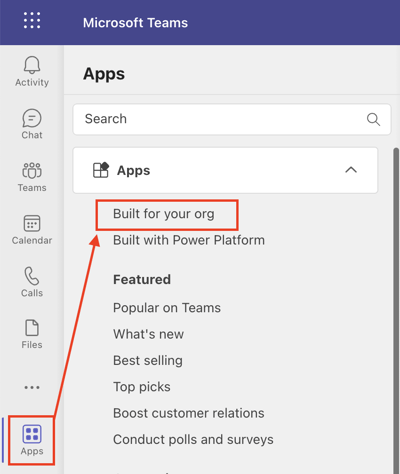
2. Click the Apps icon at the bottom of the left-hand navigation bar and select More Apps to open the Microsoft Teams application marketplace.

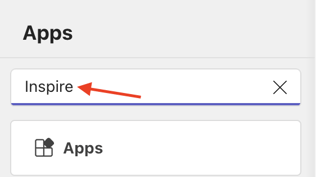
- Type Inspire AI Agent in the Search field to locate the app.
- Alternately, users can locate the Inspire AI Agent by clicking the Built for your org option, if available.
4. Click the Inspire application to select it.
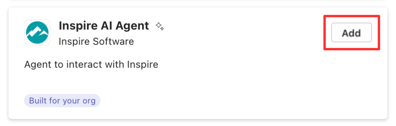
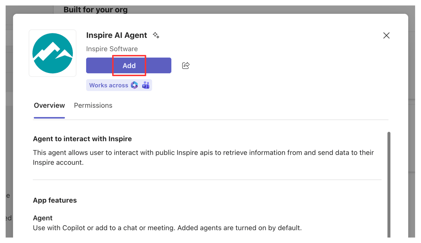
5. Click the Add button to add the Inspire application to Microsoft Teams; the Inspire AI Agent for Microsoft Teams is now installed.
Accessing the Inspire AI Agent
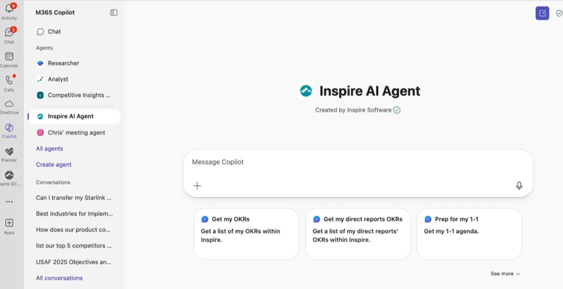
- Click the CoPilot icon towards the bottom of the left-hand navigation bar.
- Find Inspire AI Agent under Agents in the M365 Copilot menu.
Getting Started
Examples of Pre-set Prompts
- Get my OKRs – Quickly retrieve your objectives and key results.
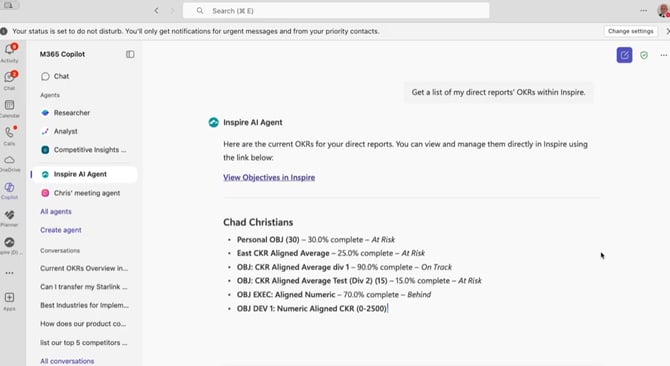
- Get a list of my direct reports’ OKRs – Ideal for managers preparing for team or 1-1 meetings.
- Get my direct reports’ 1-1 agendas – Review progress and identify areas needing attention.
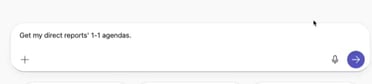
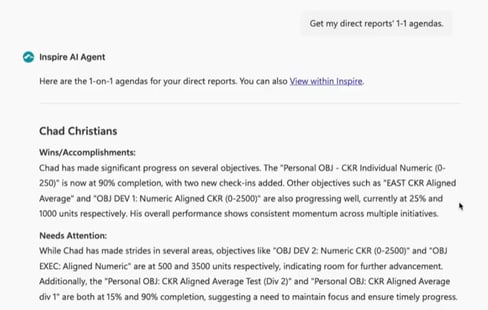
Ask Questions or Use Prompts
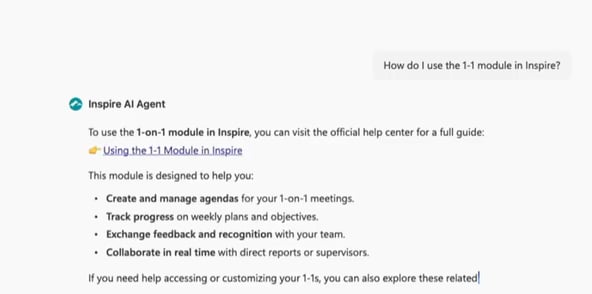
Key Features and Tips
1. Retrieve and Review OKRs
- Use prompts like Get my OKRs or Get my direct reports’ OKRs.
- Check progress, wins, and areas that need attention.
2. Voice Dictation
- The agent supports voice input, so you can ask questions like: “Show me key results that are behind for Objective X.”
3. Plan High-Impact Tasks
- Ask the agent to suggest tasks for the week based on your key results.
Important: The agent does not write back to Inspire yet.
- To add tasks: Copy the text from the agent, create a temporary task in Inspire, then paste the details and edit as needed. Rename tasks and save for a detailed plan.
4. Prepare for One-on-Ones
- Use the agent to:
- Get your direct reports’ OKRs or 1-1 agendas.
- Ask for coaching conversation suggestions.
- Copy the coaching conversation and paste it into your Inspire 1-1 or private notes for reference.
5. Performance Summaries and Activity
- The agent can help draft performance summaries.
- It can also show recent activity from your or your team’s key results and check-ins.
Note: Users can also ask about Check-In or Newsfeed data for themselves, or for their direct reports, if they are a manager.
Why Use the Inspire AI Agent?
- Stay aligned with your OKRs.
- Prepare effectively for meetings.
- Plan tasks that drive impact.
If you have any questions, please reach out to support@inspiresoftware.com